


The question "What is web design?" is a critical starting point for brands that want to establish a strong position in the digital world. A brand's online presence...
Google Business Listing allows local customers to find you on Google Search and Maps. If you manage the process of adding your business to Google Maps correctly, you'll rank higher in your area. It will also build trust and increase phone and directions clicks. This guide explains the process step-by-step in a simple way. You can follow the links and the steps on the screens exactly. Ready? Let's begin!
Step 1: Start from the Official Page
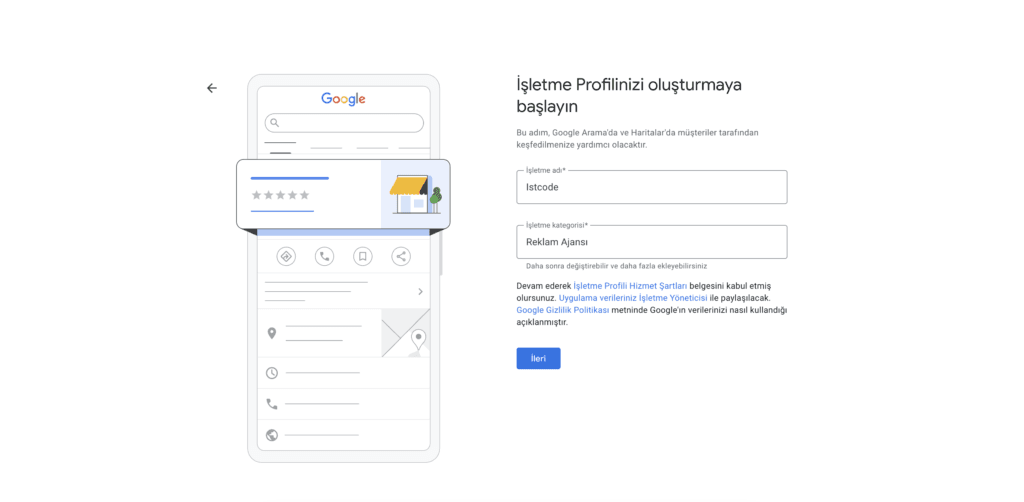
First, go to the official Google Business page: Google Business Profile. On the screen that opens, click the "Start Now" button. The system will open the screen to create your business profile. In the "Business Name" field, enter your brand name as it appears in official records. Do not add keywords or city names. Then, in the "Business Category" field, enter your field of activity and select the most appropriate option from the list. Afterwards, continue by clicking "Next".
Step 2: Can customers visit your business?
At this stage, Google will ask you if you want to add a physical location. If customers come to your store, office, or shop, select "Yes." If you only provide on-site service, proceed accordingly. This choice determines how you add your business to Google Maps. A wrong choice could affect your visibility. After making your selection, click the "Next" button.
Step 3: Enter the Business Address Correctly
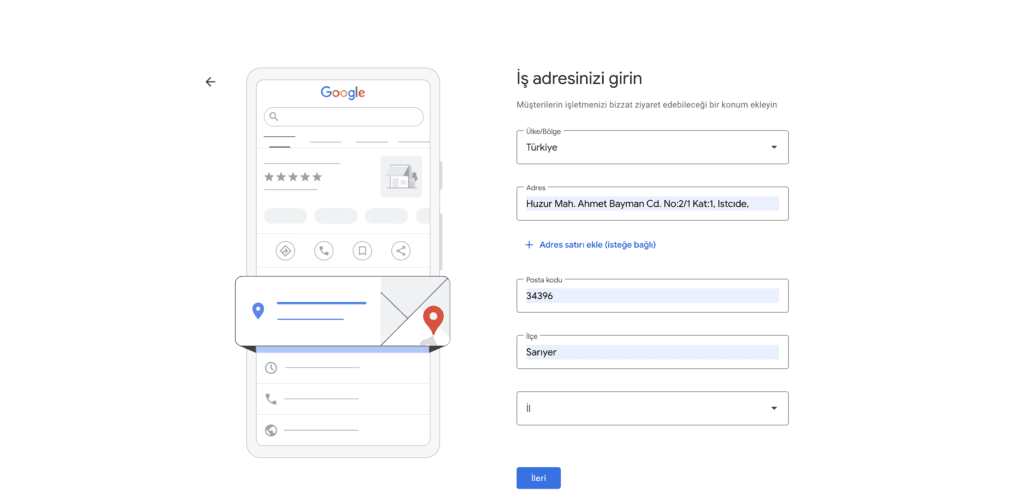
If you're adding a physical location, the system will open the address screen. Enter the country, full address, postal code, district, and province information completely. Check the location pin on the map and select the correct point. Address consistency is very important for local SEO. The address you enter here must match the address on your website. If you don't have a website yet... website service You can create a corporate website by reviewing this page.
Step 4: Add Service Areas
If you're visiting customers in person, the "Add regions you serve" screen will open. Here you can add cities, districts, or countries. If you only serve specific districts, enter those districts individually. If you serve all of Türkiye, you can enter "Turkey". This field determines which regions Google should show you in. After completing your selection, continue with "Next".
Step 5: Add Contact Information and Website
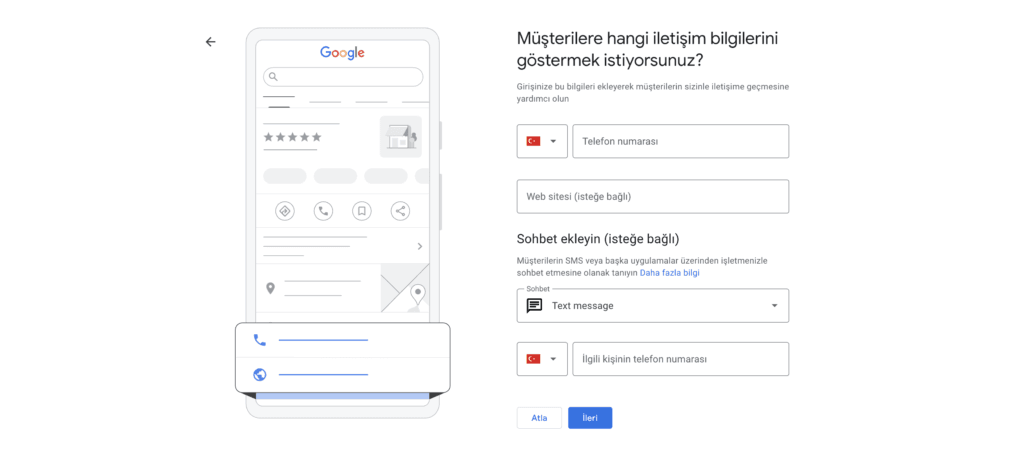
Enter your phone number and don't leave the website field blank. Adding a website during Google Business Listing creates a signal of trust and positively impacts ranking. Also, use consistent visual language and messaging for brand integrity. If you need support with this... corporate identity You can browse our page. If you want to activate WhatsApp or the messaging feature, please enter your number in the correct format.
Step 6: Check Existing Profile Match
Google sometimes displays a "Is this your business?" screen. If you see your business in the list, select it. If it's not yours, proceed with the "This doesn't match" option. However, this step prevents duplicate listings. Especially if there are other businesses with the same name, carefully check the address and phone number. Once you've made the correct selection, proceed.
Step 7: Complete the Verification Process
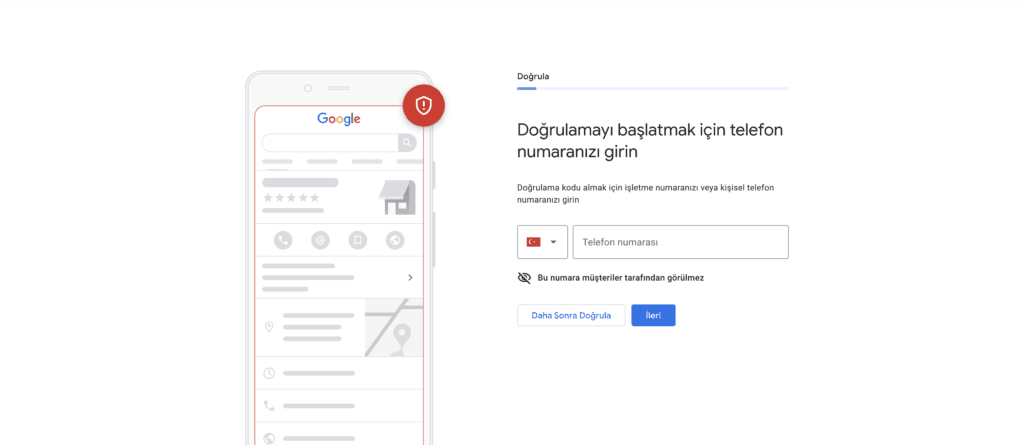
“When the ”Enter your phone number to start verification” screen appears, enter your business number. Google will send you a verification code via SMS, call, or another method. Once you receive the code, enter it in the relevant field and complete the process. Some industries may require video verification. Follow the instructions step-by-step and do not change your name or category before receiving the confirmation email.
Step 8: Optimize Your Profile
Once verification is complete, add your services one by one. In the “Add custom service” field, enter specific phrases and use keywords relevant to the search intent. Enter your business hours accurately and write a clear description. Upload real photos and update regularly. Ultimately, Google Business Listing is just the beginning; active management will propel you to higher rankings.
Short answer: To list your business on Google, you start from the official page, enter your business name and category. Then you add your location or service area, complete your contact information, and finish the verification process. If you follow the process of adding your business to Google Maps correctly, you'll achieve stronger visibility in local searches. Carefully following all the steps will speed up the process of success.
If you want to rank your business higher on maps and create the right category and service strategy, contact us now. Let us analyze your profile, identify weaknesses, and create a measurable growth plan. Take action now and strengthen your digital visibility.

Choosing the right Mobile App Development Company directly impacts the fate of your digital investment. You don't just get an app developed; you get your brand...

The question "What is digital marketing?" puzzles anyone looking to grow their brand. Today, consumer behavior changes rapidly, and brands have a presence on digital channels…